Smalltown Boy AI vs. CapCut Templates: Which Workflow Fits the Scream-and-Swap Dance?
Decide whether a CapCut template or a dedicated photo-to-video generator makes more sense for a Smalltown Boy-style scream-and-swap dance.
You have seen the clip: one character leans into the camera with a dramatic, hand-to-head reaction while another dances behind them. Then the two switch places and finish the routine together. The question that usually follows is practical rather than artistic: should you find a CapCut template, or should you make the video from photos with AI?
The answer depends on what you already have. A template is an editing route. A dedicated generator is a performance-generation route. They can overlap at the finish line, but they do not ask you to start with the same materials or make the same decisions.
Quick answer
Use a template workflow when you have found a specific edit whose timing and placeholders already suit the clip you want to make, and you are happy to replace media, crop it, and make a few editorial choices before export.
Use a dedicated photo-to-video workflow when you want two familiar people, pets, or characters to perform the recognizable scream-and-swap routine from one clear duo photo or two portraits. In that case, the useful question is not “Which editor has the trend?” It is “Which workflow gives this pair a clear role order without asking me to film the dance or build it shot by shot?”
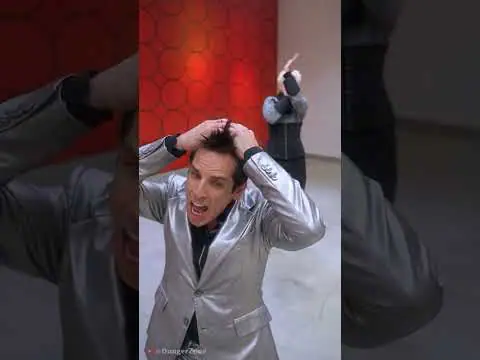
The format works because the relationship is easy to read. One character owns the opening close-up, the other creates movement in the background, and the exchange gives both a turn in the spotlight. If your version loses that handoff, it may still be a fun dance clip, but it will not have the same joke.
A template and an AI generator solve different starting problems
It is tempting to treat every result with the same soundtrack as the same production method. It is not.
A template normally begins with an existing edit. You find one that is available to you, add the requested photos or clips, preview the placeholders, replace or crop media where needed, and export. That is a sensible route when the template already contains the exact rhythm, scene changes, and treatment you want. It is also useful when your main goal is a caption, an ending card, or a quick re-cut of footage you already own.
A dedicated generator begins somewhere else: with the cast. Its job is to turn the people, pets, or characters you choose into the performance. That matters when you have a funny pair in mind but no usable dance footage, no desire to record yourselves, and no interest in writing a motion prompt or searching through a template gallery.
| Start with this situation | The workflow that usually fits | What you still need to decide |
|---|---|---|
| You have a specific edit and compatible clips or photos for its placeholders. | A template workflow. | Whether the template is available on your device, whether its timing fits, and how you will crop or replace each slot. |
| You have two portraits or one clear photo of a duo, but no dance footage. | A dedicated photo-to-video workflow. | Who gets the first close-up and whether both subjects are easy to recognize. |
| You want the exact action sequence from a particular source performance. | A reference-led or editing workflow, with permission to use the source. | Rights, reference compatibility, and how much manual editing the result needs. |
| You want a recognizable Smalltown Boy-style duo quickly, then only minor finishing edits. | Generate the performance first; use an editor afterward if needed. | The photo pair, the opening role, and the caption or trim you want after download. |
This is why “CapCut versus AI” is not the most helpful way to frame the choice. A template can be part of an editing process. A photo-to-video generator can create the moment you later decide to caption, trim, or post in an editor. The real choice is where you want the hard work to happen.
Choose the template route when the edit itself is the point
A template is worth trying when you have already found one that does more than share a song title. It should have a sequence you actually like, accept the type of media you have, and leave you with an output you can comfortably review and publish.
That route makes sense when you want control over a set of clips, text overlays, transitions, or a post-specific ending. It can also be the better choice when you are working from a real video you recorded and want to preserve its central performance.
There are two catches. First, a template called “Smalltown Boy” is not automatically the same as the current scream-and-swap format. The song has been used in more than one dance context, and a template name alone does not tell you whether it contains the foreground reaction, role reversal, and final shared dance that made this version recognizable.
Second, template discovery and availability can change across devices, regions, and app versions. Treat the template you can actually open and preview as the thing you are evaluating—not a screenshot, a repost, or a search result that may no longer lead to the same edit.
Choose a dedicated generator when the pair is the point
Now consider a different starting point. You have two friends who are always cast as the serious one and the chaotic one. Or two cats with opposite expressions. Or a couple, siblings, or original characters whose relationship is already obvious to the people who follow you.
You do not need a dance video of them. You need a way to turn that relationship into a readable twenty-one-second performance.
That is the job a focused tool should make easier. Smalltown Boy AI is built around this exact setup: upload two separate portraits, or one clear photo containing both characters, then generate a preset 21-second vertical dance video. The output is 720p in a 9:16 format with a fixed soundtrack, so there is no prompt to write, dance reference to upload, or choreography menu to learn before you start.
The main creative decision is the role order. With two separate portraits, Photo A is intended to take the first screaming close-up while Photo B begins behind them and later moves forward. With one duo photo, the subject on the left begins first. This is a small detail, but it is where the clip changes from “two people dancing” into a joke about a particular pair.
A good starting image does not need studio lighting. It does need to be legible. Use faces that are visible, keep enough upper-body detail to distinguish the subjects, and avoid heavy filters, deep shadow, sunglasses, or a crowd of extra faces. For pets, the useful signals are often the things their owner would notice first: ear shape, muzzle, eye colour, coat pattern, and a recognisable patch of fur.
The benefit of a preset is not that it removes every decision. It removes the decisions that are unrelated to the idea. You still decide who should open the video, what the duo relationship is, and whether the result is good enough to share. You do not have to design the entire performance from scratch just to test a two-person joke.
The strongest workflow is often generate first, edit second
You do not have to treat a dedicated generator and an editor as rival camps.
If the dance itself is the thing you are missing, generate it first. Once you have a complete vertical clip, an editor can still be useful for a short caption, a reaction at the end, a platform-specific cover, or a trim that puts the opening close-up at the exact moment you want viewers to see it.
This order protects the joke. Instead of forcing two unrelated photos into an edit built for different footage, you start with a routine designed around a pair of subjects, then make light publishing edits only after the two-character handoff is already present.
For example, a friend’s birthday post might begin with a caption such as “When the quiet one finally gets the microphone.” A two-cat post might name the cat that receives the first close-up. An original-character post might use the moment of the role swap as the punchline. None of those require rewriting the dance. They only require knowing what viewers should notice first.
Do not judge the result from the thumbnail
The most important review happens after generation or export. Play the whole clip once, then replay the moments where the characters move past one another.
Check the opening close-up first. Is the intended person, pet, or character recognisable? Then watch the switch. If two identities blur together, clothing changes in a distracting way, or a pet loses its distinctive markings, a clearer input photo may help more than adding another caption or changing the music.
Finally, watch the shared dance and closing rush. Exaggerated camera perspective is part of the format. A face that turns into a different person, a merged limb, or a character that disappears is not. Change one input issue at a time before trying again, so you can tell what improved the next result.
The same restraint applies to publishing. Use photos you are allowed to submit, ask recognisable adults before you make or share a synthetic performance of them, and make the AI origin clear where the platform requires it. The included soundtrack is convenient for the preset, but it does not automatically settle music rights for every account type, platform, or commercial use.
Which route should you choose?
Choose a template workflow when you are drawn to a particular edit and are comfortable working around the media, device, and availability requirements that come with it.
Choose a dedicated photo-to-video workflow when the whole reason you are making the clip is the cast: your two friends, your pets, your characters, and the joke of seeing them trade the foreground. That is where a fixed scream-and-swap routine saves the most effort.
And if you want the practical middle ground, create the performance first and edit it afterward. The audience does not care whether you opened an editor before or after generating. They care whether the pair is recognisable, the role swap lands, and the final dance gives the two characters a payoff.
Frequently asked questions
What app makes the AI video where one person screams and the other dances?
There is no reliable way to identify the exact tool behind every repost from the finished video alone. Several workflows can produce a clip with the same song or a similar dance. If your goal is specifically to make the two-character scream-and-swap routine from your own photos, use a workflow that is designed to assign each character a role rather than assuming any dance template will do that.
Do I need to film myself for a Smalltown Boy-style AI dance?
Not if you use a dedicated photo-to-video preset. Smalltown Boy AI starts from two portraits or one clear duo photo, then generates the performance. You do not need to record yourself dancing or upload a separate dance reference for that preset.
Do I need a prompt or a reference video?
Not for the preset route described here. Prompt-driven and reference-led tools are useful when you need more control over a custom scene or an exact source performance. They also add assets and decisions. For this fixed duo format, a clear photo pair and an intentional role order are the essential inputs.
Can I still use an editor after generating the video?
Yes. An editor is a useful finishing tool for captions, a platform-specific cover, a trim, or a reaction at the end. It does not have to be the place where you create the dance itself.
Can I make the video from one photo?
One photo can work when it clearly contains both characters. A single solo portrait is not a substitute for a duo image: if the two subjects are in separate photos, upload both portraits so the generator has a reference for each role.
The best choice is the one that matches your starting material. If you already have an exact edit and media that fits it, a template can be a fast route. If the idea begins with two faces and a role-swap joke, start with the tool that turns those two characters into the dance before you spend time polishing the post.