How to Make a Smalltown Boy AI Dance Video
Learn how to make a Smalltown Boy AI dance video from two portraits or one duo photo. Choose the role order, generate the dance, and review it before sharing.
The Smalltown Boy AI dance is funny because both characters get their moment: one rushes into an exaggerated close-up while the other dances behind them, then they switch. The part worth getting right is not a complicated prompt. It is choosing two recognizable subjects and putting them in the right order.
To make a Smalltown Boy AI dance video, upload two separate portraits or one clear photo of both characters, check who gets the first close-up, and generate the preset dance. Smalltown Boy AI creates a 21-second, 720p vertical video with a fixed soundtrack. You do not need to film yourself, upload a dance reference, or write a prompt. Preview the entire result before downloading and sharing it.
This Smalltown Boy AI tutorial walks through the photo choices, upload steps, and checks that matter most—especially if you are making a version with friends or pets.
What is the Smalltown Boy AI dance trend?
The AI version puts familiar people, pets, or characters into a two-subject routine associated with Bronski Beat’s “Smalltown Boy.” Its recognizable moments are the dramatic, wide-angle-style close-ups, the switch between foreground and background roles, and the shared dance.
In this generator’s reference routine, the sequence moves through four beats:
- The first character takes the screaming close-up while the second dances behind them.
- The second character moves into the close-up as the first takes the background role.
- Both characters dance together in the same frame.
- The duo rushes toward the camera for the ending.
These are the intended beats, not a promise that every generated movement will match the reference exactly. AI motion, likeness, and framing can vary.
This is also different from the earlier live-action Smalltown Boy dance challenge. Here, the photos supply the characters; the generator supplies the animated performance.
What you need before you start
Have either two separate portraits, with one subject in each, or one photo containing exactly two subjects. You can use yourself and a consenting adult friend, a couple, two pets, or a pet pairing such as a cat and a dog. You do not need a photo of anyone already dancing.
Use JPEG, PNG, or WebP files. If your phone saves a photo in another format, export a copy in a supported format before uploading it.
Each standard generation uses 10 credits. Smalltown Boy AI offers one-time video packs rather than an automatically renewing subscription; check the current video pack pricing before generating. Choose your photos and role order first so you are not spending another generation merely to reverse the performers.
The service is intended for users aged 18 or older. Use photos you own or have permission to use, and ask recognizable people before uploading their likenesses or sharing the result. Uploaded photos may be sent to AI service providers, and inputs and results may be stored for processing and account history. The Privacy Policy explains retention and deletion requests.
How to make a Smalltown Boy AI dance video, step by step
Step 1: Choose the right photo setup
Two portraits are a practical choice when the characters are not in the same original photo, or when you want a straightforward way to decide who appears first. One duo photo saves you from preparing two files, but both subjects need to be clearly visible.
For separate portraits, look for a sharp, front-facing face with visible hair and some upper-body detail. Try to use images with reasonably similar face sizes. A tiny face in a distant group photo is a less useful starting point than a clear individual portrait.
For a duo photo, keep both faces inside the crop. Avoid a picture where one person is half hidden behind the other, cut off at the edge, or much smaller in the background. Do not leave extra people in the image and expect the generator to know which pair you meant.
As a quick check, view each photo at phone-screen size. Can you immediately recognize the subject without zooming? Are the face and clothing easy to distinguish from the background? If not, choose another original image rather than sharpening a tiny screenshot.
Avoid sunglasses, face-covering hands, strong blur, and heavy beauty filters. You do not need identical lighting or matching outfits, but the generator should have a clear reference for each character.
Step 2: Open the generator and upload your photos
Open the Smalltown Boy AI dance generator and select Upload photos.
If you are using two portraits, add the first portrait, then use Add another photo for the second. If you are using one duo photo, upload that image with both subjects visible. Follow any crop controls or account prompts shown in the interface.
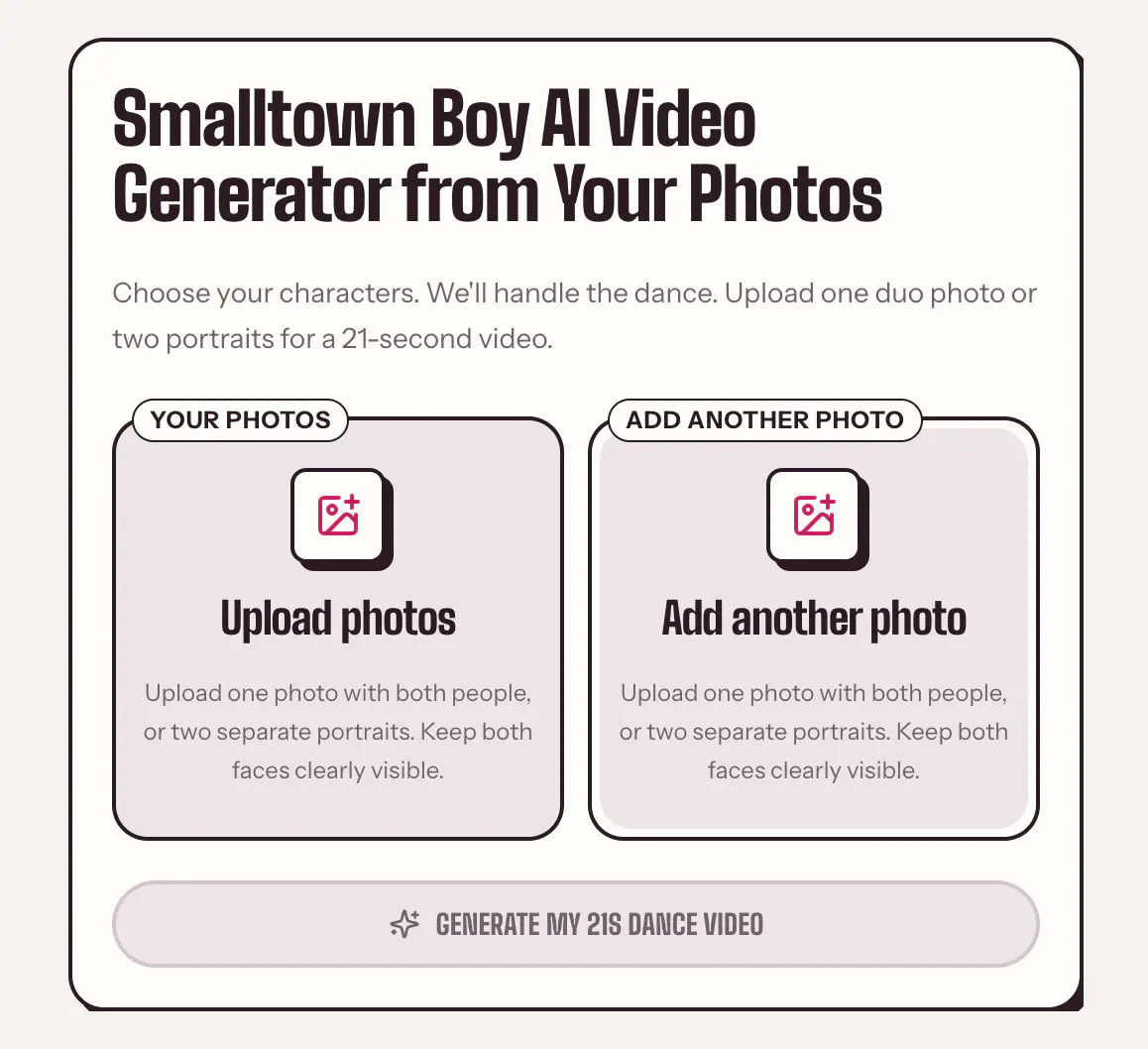
Check the uploaded previews before continuing. Make sure you selected the intended files, that neither face has been cropped out, and that a duo image still contains both subjects.
You do not need to upload a separate reference video. The Smalltown Boy routine is already built into this generator.
Step 3: Decide who gets the first close-up
The photo order is part of the joke, so make this choice before generating.
With two portraits: Photo A takes the first screaming close-up while Photo B dances in the background. Photo B then takes the close-up when the roles switch.
With one duo photo: the subject on the left takes the first role, and the subject on the right takes the second.
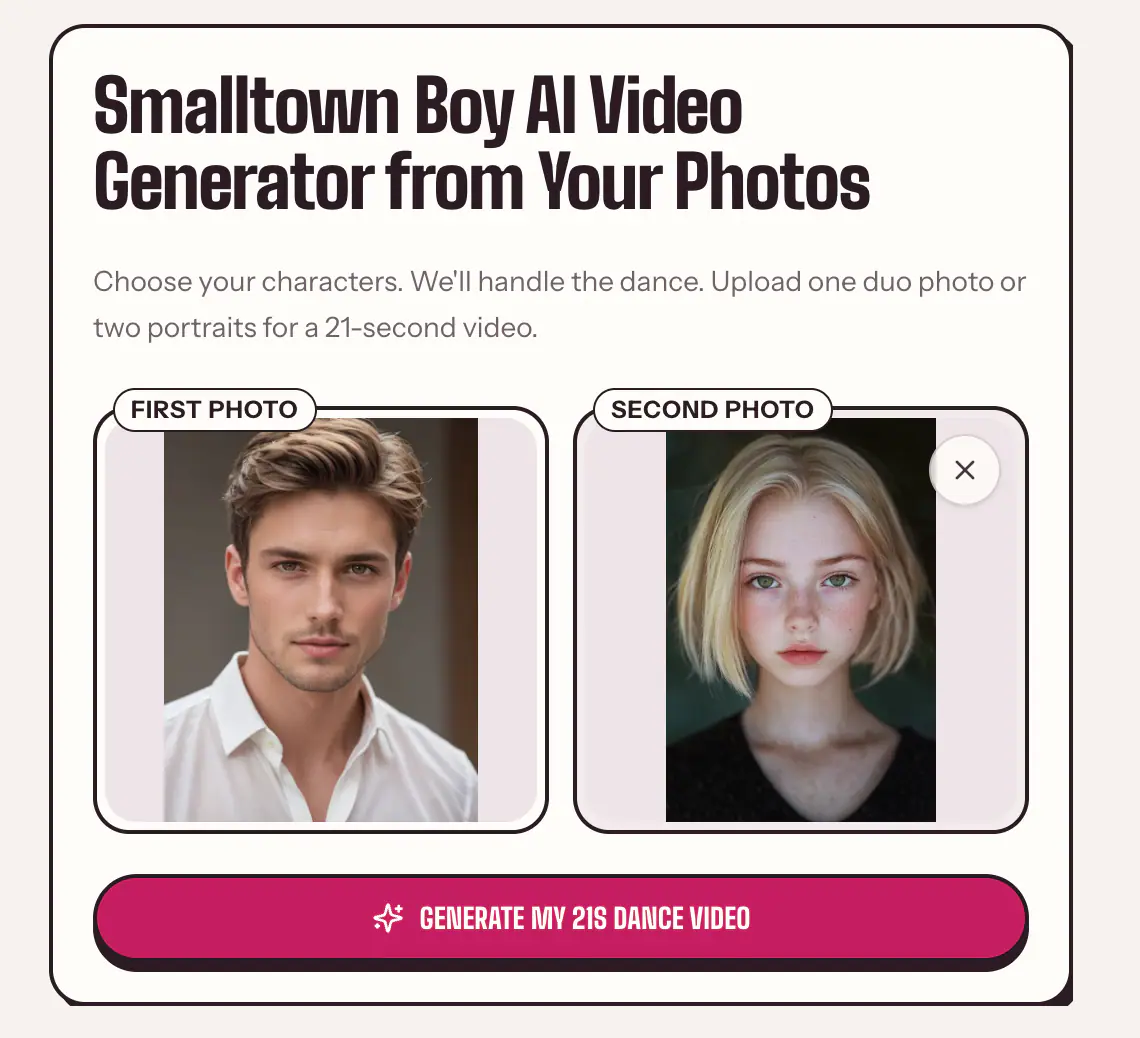
For example, if you want your friend to open the video and you to take the second close-up, use your friend’s portrait as Photo A and yours as Photo B. With a duo photo, check where each person stands in the uploaded preview.
These assignments describe the preset’s intended roles. They do not guarantee perfect identity preservation through every movement. Still, checking the order now avoids an easily preventable mismatch later.
Step 4: Generate the preset dance
Select Generate My 21s Dance Video and follow the on-screen instructions if you need to sign in or add credits.
The standard output is already set to:
- 21 seconds in length.
- 720p resolution.
- 9:16 vertical framing.
- A fixed soundtrack included in the video.
There is no prompt to write and no camera movement or choreography setting to choose for this preset. If you have seen a Smalltown Boy AI tutorial that asks for two character images, a motion-reference clip, and a long prompt, that is a different workflow. Those extra inputs are not required here.
Follow the task status in the generator. Completion time varies, so a waiting task does not necessarily mean it has failed. If you leave and return later, use the same account and check the task or saved result before submitting again.
Step 5: Review both characters throughout the video
Do not judge the result from its thumbnail. Play all 21 seconds, then replay any moment where the characters overlap or move quickly.
Start with the two close-ups. Check whether each subject remains recognizable. Exaggerated perspective is part of the effect, but a stretched expression is different from a face that has become someone else. For pets, check the eyes, ears, muzzle, and distinctive markings.
Watch the role switch. Follow each character from foreground to background. Look for swapped faces, blended clothing, or a character briefly disappearing into the other. A recognizable opening does not rule out an identity problem halfway through.
Check the shared dance and ending. Look at hands, arms, legs, and feet—or paws and limbs in a pet version. Watch for fused limbs, sliding feet, changing fur patterns, or a subject unexpectedly leaving the frame.
Keep the intended tone in mind. A pet standing upright or a dramatic expression can be the joke. An extra limb or a face that changes identity is a generation artifact. Clear input photos give the AI a better starting point, but exact likeness, outfits, anatomy, and choreography are not guaranteed.
If you plan to share a friend’s version, let them see the finished clip first, not just the photo you used.
Step 6: Download and prepare it for sharing
Download the completed video once you are happy with the full preview. The standard download is provided without a display watermark.
Keep the original downloaded file for uploading to TikTok, Instagram Reels, or YouTube Shorts. The video is already vertical, so you do not need to crop it into 9:16. Avoid sending it through several messaging apps before posting; repeated compression can make facial details harder to see.
The video includes a fixed soundtrack, so adding music is not a required generation step. However, an included soundtrack does not by itself establish music rights for every platform, account type, or commercial use. Check the rules where you intend to publish. For branded TikTok content, the platform’s Commercial Music Library guidance explains how pre-cleared commercial audio differs from its general music library.
If you replace the music in an editor or publishing app, mute the original track rather than playing two tracks together. Preview the close-ups and role switch again after changing the audio; the timing can feel different even when the picture has not changed.
Make the AI origin clear when posting. TikTok’s AI-generated content policy requires labels for AI-generated content containing realistic images, audio, or video. It also prohibits AI-generated depictions of people under 18 and adult private individuals whose likenesses are used without permission.
How to make the Smalltown Boy AI cat dance
Use the same workflow for a cat version: upload one clear image of each cat, or a clear photo of both, decide the opening role, and generate the preset.
Photo selection matters in a slightly different way. A person may be recognizable from a face and hairstyle; a cat may depend on its coat pattern, eye color, muzzle, and ear shape. Choose photos that show those details without blur or deep shadow. Visible body features also give the generator more information than an extreme close-up of only the eyes and nose.
With two cats that look similar, keep track of which photo belongs to which cat before uploading. Distinct markings make changes easier to spot, but do not guarantee that the AI will preserve them.
On playback, watch for stripes moving between characters, changing coat colors, fused paws, and extra limbs. The upright dancing is intentional comedy. Losing the features that make each cat recognizable is a reason to try a clearer input.
Common problems and what to change
The wrong character gets the first scream
Check the input arrangement before changing anything else. With two portraits, Photo A should open the close-up. With a duo photo, the left subject gets the first role.
If the duo photo makes that arrangement awkward, use separate portraits so you can set the order directly. Downloading or renaming a finished video will not change the roles; a different opening requires another generation.
The face changes or the clothing looks different
Start with a clearer reference, not a more complicated prompt—this preset does not require one. Replace a filtered image, a distant crop, or a partially covered face with a sharp original photo. Include visible clothing if the outfit matters to the result.
If a duo photo hides one subject, try separate portraits. Change one input issue at a time so you know what you are trying to improve. Better photos can help, but do not promise an exact reconstruction.
The movement looks strange
First identify the problem: is it exaggerated perspective in a close-up, or a genuinely broken limb or identity change?
Check the same moment on replay. If the source image hides arms, paws, or much of the body, a photo with more visible body detail may be a better reference. You cannot repair a malformed hand simply by changing the soundtrack or adding a caption.
Treat another generation as another attempt, not a guaranteed fix. Decide whether the issue is acceptable for a playful clip before using more credits.
The upload is rejected or the task is still waiting
For an upload problem, check that the file is JPEG, PNG, or WebP and follow the error message shown by the site. Export an unsupported phone image into a supported format rather than repeatedly uploading the same file.
For a waiting task, check its status and your saved results before resubmitting. Smalltown Boy AI returns consumed credits when a generation is recorded as failed. A pending task is not the same as a failed task, and a completed video you dislike is not automatically a failed generation.
Smalltown Boy AI tutorial FAQ
Can I make the video from one photo?
Yes, if that photo clearly contains both characters. One solo portrait is not the same as one duo photo. If your subjects are in separate images, upload both portraits instead.
Do I need a Smalltown Boy AI prompt?
No. This generator uses a preset routine. You do not need to describe the dance, camera angles, or role switch in text.
Do I need a Smalltown Boy CapCut template?
No. A CapCut template is a separate workflow with its own media and editing instructions. Here, the generator creates the AI performance from your photos. You can still use an editor afterward to trim the result, add captions, or adjust audio.
Can I change the duration, resolution, or music before generating?
The standard preset is 21 seconds, 720p, and vertical 9:16, with a fixed soundtrack. These are not settings you need to choose for this workflow. If you need a shorter clip or different audio, edit the downloaded video afterward. Exporting it at a larger resolution will not restore details missing from the original 720p video.
How long does generation take?
Completion time varies. Follow the task status rather than relying on a fixed countdown, and check the existing task before starting another one.
Start with the pair, not the prompt
Choose two characters your audience will recognize, give each a clear photo reference, and decide who gets the first close-up. The preset handles the dance; your final job is to check that both characters stay recognizable through the swap and the shared routine. Once the full clip passes that check, download it and share your version with the right permissions and AI disclosure.